Discord
The Discord integration posts every note you publish into a Discord channel. It uses a Discord incoming webhook, so there is no app to install and no OAuth screen to approve: you paste a URL that Discord gives you, and Updatify posts to it.
One webhook posts to exactly one channel. A project can hold several of them, so you can send different parts of your changelog to different channels.
1. Create the webhook in Discord
Section titled “1. Create the webhook in Discord”Create the webhook on the channel you want your changelog in, not on the server as a whole. A webhook belongs to one channel, and creating it from the channel’s own settings is what makes sure it is the right one.
You need the Manage Webhooks permission on that channel, which server owners and most admin roles have.
- In Discord, hover the channel in the sidebar and click the gear icon to Edit Channel. Right-clicking the channel and choosing Edit Channel does the same thing.
- Go to Integrations, then Webhooks.
- Click Create Webhook. Name it something you will recognise later, such as
updatify. Check that Posting to names the channel you meant, and that the Channel dropdown on the webhook agrees. - Click Copy Webhook URL.
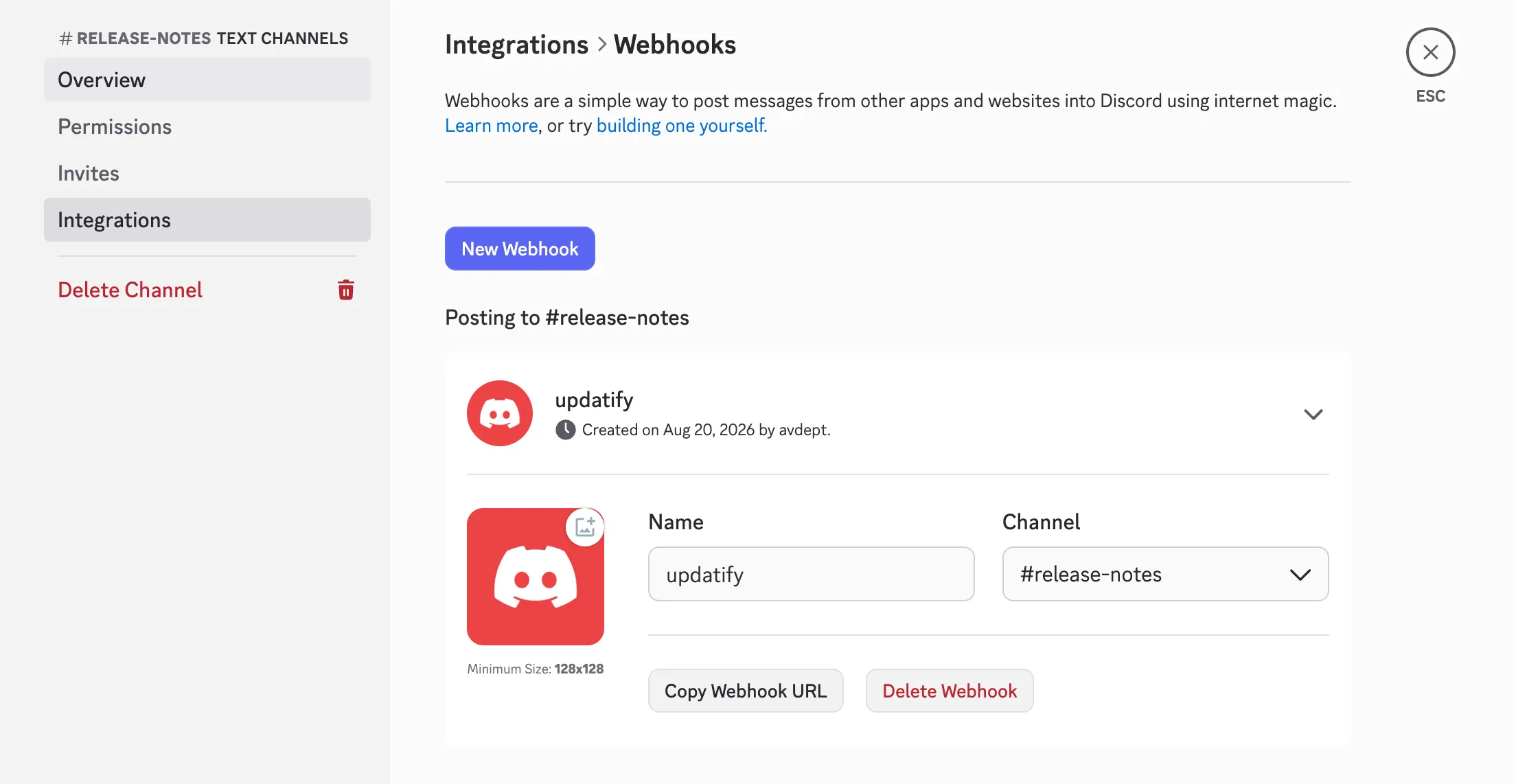
The URL looks like this:
https://discord.com/api/webhooks/123456789012345678/aBcDeF...Treat it as a secret. Anyone holding it can post messages into that channel. Deleting the webhook in Discord revokes it immediately.
2. Add the integration in Updatify
Section titled “2. Add the integration in Updatify”- Open Integrations in Updatify.
- Find Discord under Add an integration and click Add.
- Paste the webhook URL.
- Give it a name. Only you see it, and it is what tells your webhooks apart
on the Integrations page. Naming it after the channel works well, for example
product-updates. - Pick the audiences this channel should receive, or leave every box unchecked to send it everything. See Audience targeting below.
- Click Save, then Send test message to check the URL works. A test embed should appear in the channel within a second or two.
Only URLs on Discord’s own hosts are accepted. If you paste something else, the form refuses it rather than letting Updatify make requests to an unrelated address.
3. Post a note to Discord
Section titled “3. Post a note to Discord”Publishing does not post to Discord on its own. On the note you are writing, tick Post to Discord, then publish. Scheduled notes post when they publish.
A note is posted once. Editing or re-saving a published note does not post it again, which is what keeps a small typo fix from spamming the channel.
Audience targeting
Section titled “Audience targeting”Audience targeting decides which notes reach which channel, and it works the same way as it does for the embeddable widget:
| Webhook aimed at | Receives |
|---|---|
| No audiences (default) | Every note you publish. |
| One or more audiences | Notes aimed at those audiences, plus notes meant for everyone. |
Notes meant for everyone reach every channel on purpose. A project running one channel per audience still wants its general announcements to land in all of them, rather than in none.
Example: a public channel and a beta channel
Section titled “Example: a public channel and a beta channel”- Add a webhook for
#changelog, leave every audience unchecked. It gets everything. - Add a second webhook for
#beta, and check yourBeta testersaudience. It gets notes aimed at beta testers, plus your general announcements.
Add as many as you have channels: use the + on the Discord row on the Integrations page.
What the message looks like
Section titled “What the message looks like”Updatify posts a Discord embed containing:
- the note title, linking to the note on your public changelog
- the note body, converted to the Markdown Discord renders
- the hero image, if the note has one, or the first image in the body
- the time the note was published
Formatting carries over, with a few adjustments for what Discord actually renders:
| In your note | In Discord |
|---|---|
| Headings | Bold text, so a note does not shout in the channel. |
| Bold, italic, links | Unchanged, including links with their own text. |
| Bullet and numbered lists | Unchanged. |
| Inline code, code blocks | Unchanged, and code blocks keep their language. |
| Quotes | Unchanged. |
| Horizontal rules | A divider line, since Discord has no rule syntax. |
| Tables | Wrapped in a code block so the columns line up. |
| Inline images | Dropped: a Discord embed renders one image, which is the hero image. |
Discord caps an embed description at 4096 characters. A longer note is trimmed, and the link in the title still takes readers to the whole thing.
Troubleshooting
Section titled “Troubleshooting”The test message fails with “Discord rejected the webhook URL”. The webhook was deleted or renamed away in Discord, or the URL was pasted incompletely. Create a new webhook, copy the URL again, and save.
Nothing arrives when I publish. Check, in this order:
- Post to Discord was ticked on the note before you published it.
- The note has not been posted already. A note posts once; publishing an edit does not post it again.
- The channel’s audiences match the note. A webhook aimed at
Beta testersdoes not receive a note aimed only atEnterprise. - The integration is enabled.
I want to send an already published note. Publish a new note, or ask support to reset that note’s Discord state.
Posting to several channels and one fails. The channels that accepted the note keep it. Fix the broken webhook’s URL, and the next note goes to all of them again.
Removing the integration
Section titled “Removing the integration”Deleting a webhook on the Integrations page stops Updatify posting to that channel. It does not delete anything in Discord: to remove the webhook itself, open the channel’s Edit Channel → Integrations → Webhooks and click Delete Webhook.